Help and features
1. Scanning
On the start screen tap the yellow Scan button and hold the code inside the frame. Pixcode recognises it instantly and shows the content.
Small or distant codes: zoom with two fingers. In low light, turn on the flashlight at the top right.
Start faster – Android: pull down Quick Settings, tap edit (pencil) and add the Scan screen tile; it looks for codes right on your screen. iPhone: in the Shortcuts app, with Siri (“Scan code with Pixcode”, “Scan latest screenshot with Pixcode”), in Spotlight or on the Action button (Settings → Action Button → Shortcut → Pixcode).
2. From image, file and link
On the scan screen: From image opens your gallery, From file (PDF) opens PDFs and image files. All pages of a PDF are searched.
From link: enter the address of an image, a PDF or a web page – Pixcode loads it and looks for codes, on web pages also in the page’s images.
If there are several codes, pick one from the list.
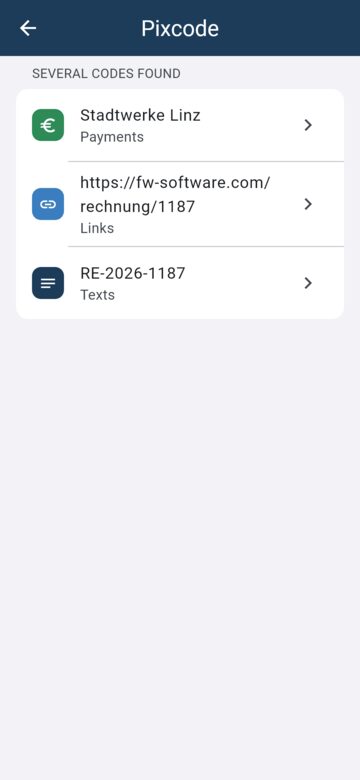
3. Share to Pixcode
A code on your screen, in an email, a PDF invoice or on a web page? Share the screenshot, file, image or link and choose Pixcode.
From Safari or Chrome this also works with images on web pages (long press → Share) and with the whole page.
Android: in the share menu or under “Open with”. iPhone: in the share menu; if Pixcode is missing, tap “More” at the far right and enable it.
4. Payments (GiroCode, Swiss QR)
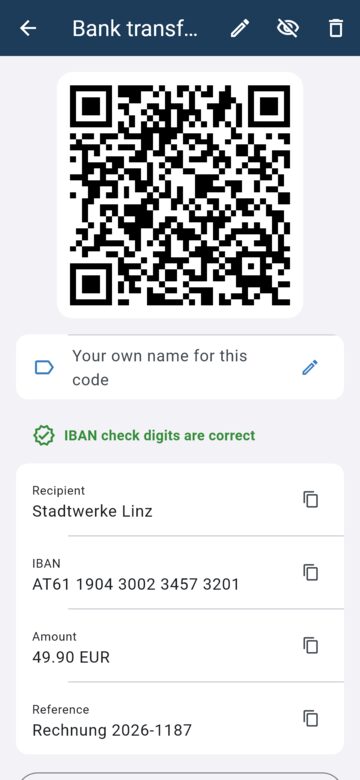
Pixcode shows recipient, IBAN, BIC, amount and reference. The IBAN check digits are verified – a green tick means no typo.
Tap any field to copy it; Copy bank details copies “name, IBAN, BIC” in one line for your banking app. There are no ads on this screen.
5. Open links safely
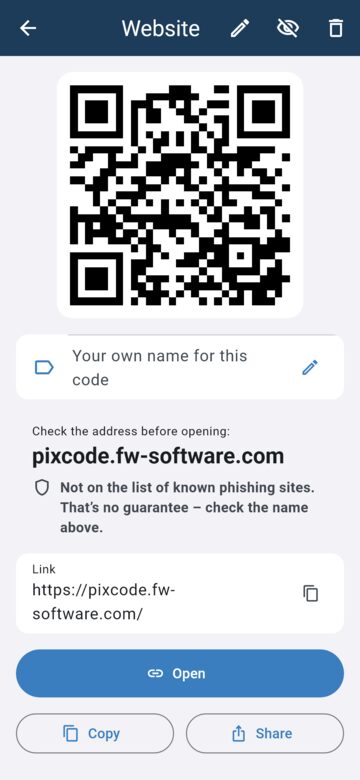
For links Pixcode shows the address in large letters before you open it, so you can spot fake codes (e.g. on parking meters) that lead to foreign sites.
Pixcode also checks the address against a list of known phishing sites – on your device, the address is not sent anywhere. The list is refreshed in the background every few days.
You also get a warning for IP numbers instead of names, special characters that imitate well-known names, short links, an “@” in the address and unencrypted http links. No warning is no guarantee – still read the name.
6. Create codes
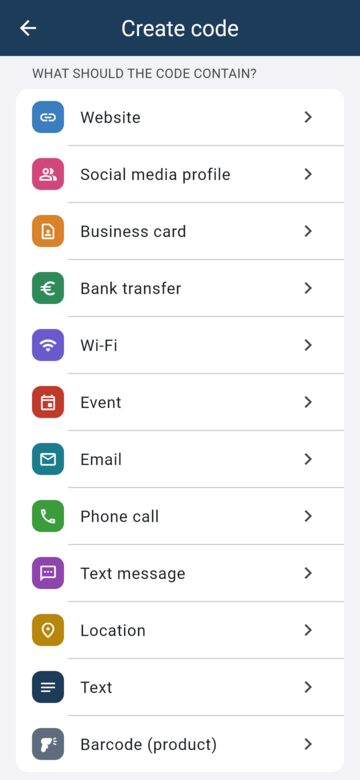
Plus at the top right → choose a type: website, business card, bank transfer, Wi-Fi, event, email, call, SMS, location, text, barcode, boarding pass or social media profile.
Social media: choose the network (Instagram, Facebook, TikTok, YouTube, X, LinkedIn, WhatsApp, Telegram, Signal) and enter the name or phone number – Pixcode builds the right link. Scanned profile links are recognised too.
Fill in the form, choose the code type (QR, Data Matrix, Aztec, PDF417, Code 128, EAN) and tap Create. Optionally show name above the code and show content below the code. Then share, save or print it as an image.
7. Readable content
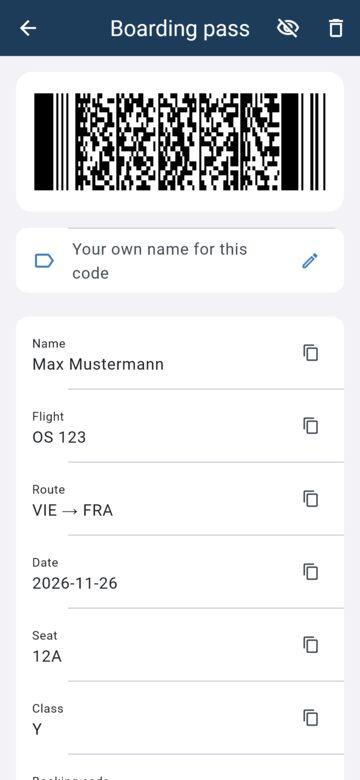
Some codes contain only numbers and abbreviations. Pixcode turns them into plain text:
Boarding passes: passenger, flight, route, date, seat and booking code.
Medicines (Data Matrix on packs): PZN, batch, serial number and expiry date. Other GS1 codes (GTIN, batch, expiry) become readable too.
Medication plan (Germany): patient, practice and medicines with dosage.
8. History, categories and search
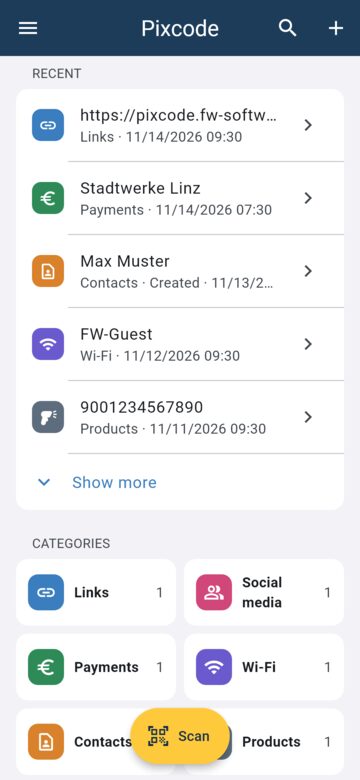
The start screen shows your recent codes (Show more expands the list) and the categories with counts below.
The magnifier searches everything: names, content, IBAN, network, category. In the details you can give each code your own name. If there is text next to the code in the image (e.g. “Menu”), Pixcode suggests it as the name – tap Use.
Swipe left to delete – with undo. The eye at the top hides a code’s content.
9. Backup
Automatic: Android backs up to your Google account, iPhone to iCloud (if enabled in the system).
As a file: Menu → Backup → Save backup, e.g. to Drive or by email. Restoring keeps what is already there.
As a table: Export as CSV for Excel, Numbers or Google Sheets – for viewing only, it can’t be imported back.
10. Settings and ads
Menu → Settings: appearance (light/dark), language (24 languages), vibrate on scan, change ad consent, delete history.
Menu → Support Pixcode: watch a short video, then 24 hours without ads. Menu → Remove ads: buy once, no ads for good; on a new device use Restore purchase.
Frequently asked questions
A code is not recognised?
Hold it a little further away, zoom or turn on the flashlight. If that fails, take a photo and use “From image” – Pixcode then uses a second, very thorough reader. Very small images (e.g. thumbnails from the web) often have too few pixels – use the original instead.
Why ads?
Pixcode is free and funded by a banner. There are no ads on the payment screen. No ads: watch a short video for 24 hours or buy “Remove ads” once. Change your consent under Menu → Settings → Advertising.
Are my codes uploaded?
No. Recognition, text recognition, link checking and history stay on your device. Pixcode only downloads the phishing list and – if you want – images or pages you open via a link.
Questions or ideas? In the app: Menu → Send feedback, or email [email protected]